Measure how much smaller it gets
The displayed size is the byte count of the file actually generated. Results depend on the image content, so we do not use fixed reduction forecasts or estimates.
For anyone adding images to websites or documents.
Compare compressed file sizes and image quality side by side
to find the right format and settings for your image.
Free. No registration. Processed on your device. Before you select an image, the report uses the sample.
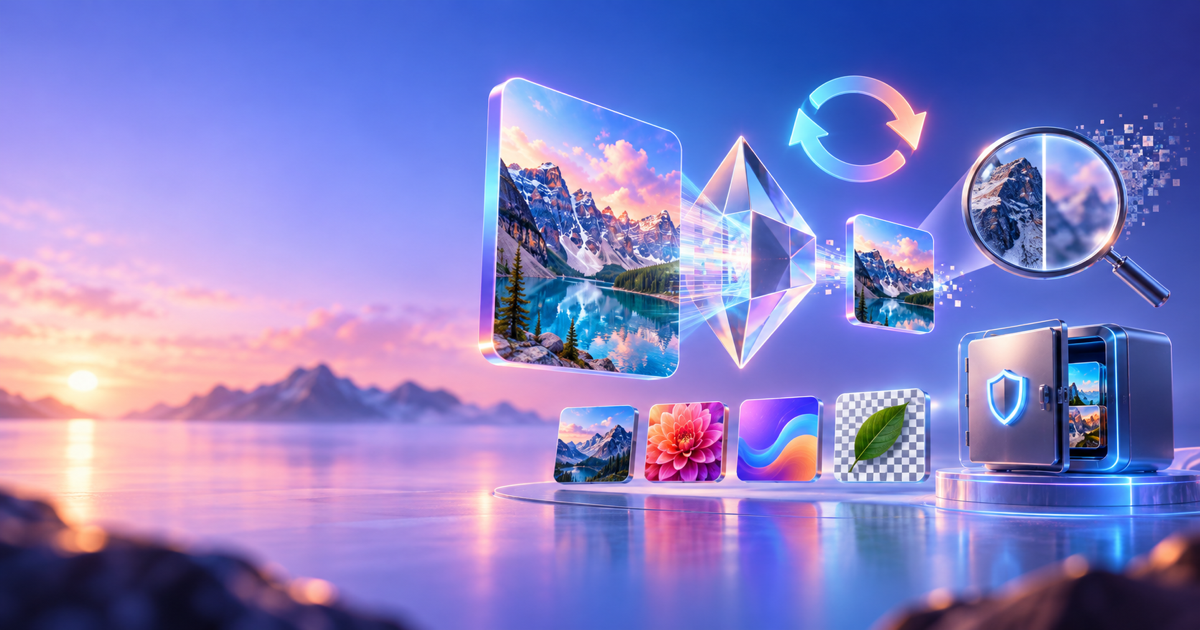
Start by moving the slider with the sample image. Select your own image to compress and compare it using the same controls.
JPEG, PNG, WebP, or AVIF. Supported input formats depend on your browser. Up to 20MB and 24 million pixels.
The sample is drawn on your device and includes a landscape, gradients, and fine text.
Lower settings can help reduce file size. This number is not an image quality score.
At 100%, each image fits the width of its panel. After zooming in, you can scroll within the image. Both panels scroll together.
Free. No registration. Processed on your device. The report is an HTML file and does not contain the image.
Only the use case, format, quality, and notes are saved. Images are not saved. Clearing your browser data also removes these notes.
The displayed size is the byte count of the file actually generated. Results depend on the image content, so we do not use fixed reduction forecasts or estimates.
Skies, skin tones, text edges, and fine lines. Compare the areas that matter side by side at up to 400% display zoom to see whether the quality suits your needs.
Narrow down formats based on your use case, transparency needs, and destination. Save your chosen settings in local notes and a comparison report as a starting point next time.
| Format | Suitable images | Transparency | Notes for this tool |
|---|---|---|---|
| JPEG | Photos and gradients | Not supported | Lossy compression. Check text and edges for blurring. |
| PNG | Logos, graphics, and fine text | Supported | Lossless compression. The quality slider has no effect. |
| WebP | Web photos and transparent images | Supported | This tool converts using a quality setting. Check that the destination accepts it. |
| AVIF | Web images for compatible environments | Supported by the format | A browser may display AVIF without being able to export it. |
Images contain neighboring colors that are similar and patterns that repeat. Compression makes files smaller by recording this information more efficiently or reducing detail that is less noticeable to the eye.
Lossless compression allows the original pixel information to be restored. PNG is a common example. Lossy compression discards some information, so the original pixel information cannot be fully recovered. JPEG is a common example; setting the quality too low can make blurred edges and block-like artifacts more noticeable. WebP and AVIF support multiple compression methods, but this tool uses the browser's export feature and does not offer a lossless mode setting.
The quality value is a setting passed to the encoder. The same value can produce different results across formats and browsers, and file size will not necessarily decrease by a fixed percentage. Converting an image that is already small may even make it larger. Judge both its appearance at the intended display size and its actual file size.
The sample is a good place to start. When using your own image, load it while keeping the original file.
Change the format and quality, then inspect text, edges, and smooth color transitions. Check which formats your destination accepts, too.
Save the converted image and note why you chose those settings. Keep the report to make it easier to try the settings on your next image.
Free. No registration. Processed on your device.
This tool loads images in your browser and converts them using Canvas. It does not send images, file names, or notes to an external server. If you choose local saving, only your settings and notes are stored in your browser.
No. Results depend on the original format, image content, quality setting, and browser encoder. If conversion makes the file larger, the percentage increase is displayed. Also check whether your destination supports the format.
Support for reading images and support for exporting them are separate. This page checks the generated file's MIME type. If the browser cannot export the selected format, it prevents saving and displays a message. Choose another supported format.
This quality setting does not apply to the browser's PNG export. To make a PNG smaller, you would need to consider other changes, such as reducing the image dimensions. This tool does not resize images.
The tool exports the rendered image rather than saving the original file unchanged. Original metadata such as EXIF and animation are not retained. It is not suitable for converting animated images or for uses that require precise preservation of color or print properties.
Locally saved notes are available in the same browser on the same site. They do not sync automatically to other devices. Download a comparison report if you want a portable copy. The report does not include the image itself.
Not sure which image settings to choose? Start with one image. Save the settings and comparison results as a practical reference for your next project.
Free. No registration. Processed on your device. If you have not selected an image, sample results are included.