Target KB
Image Compressor
Meet your size limit ↓

A way forward when your image is too large.

Image too large?
Make it fit.

Stuck on an application form or product listing because your image is too large? Set a target size in KB, compare quality and file size, and prepare an image you can submit.

Compress your own image ↓

Free, no registration required. Images are processed on your device. If no image is selected, a sample image will be generated.
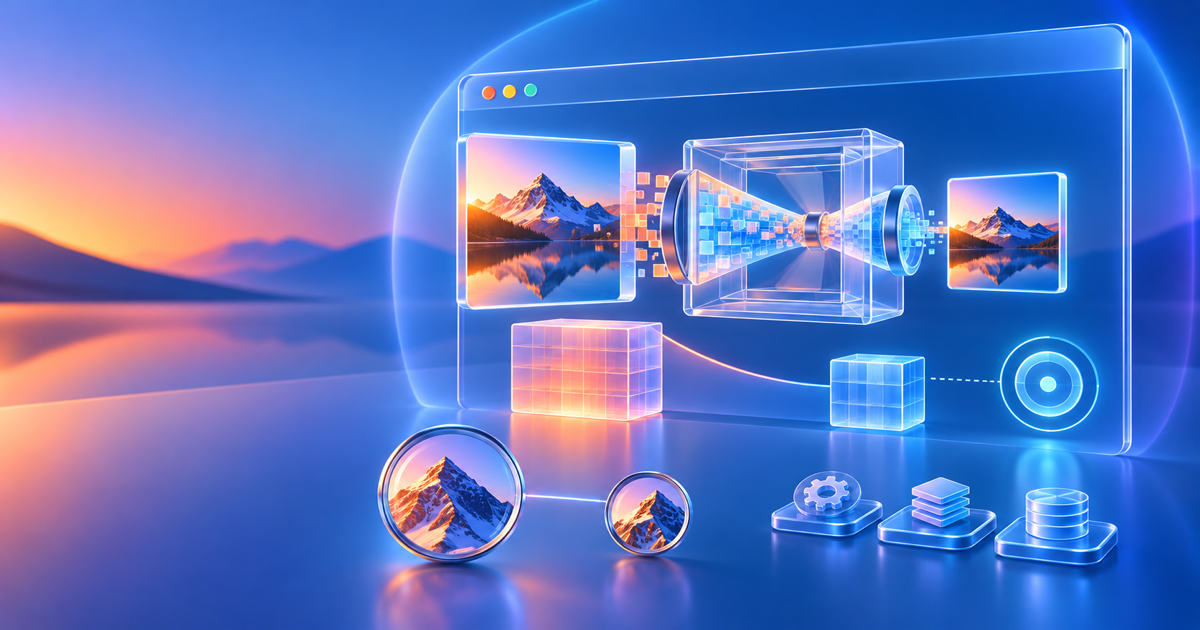
Only images verified to meet your size limit are marked ready to save.
Illustration of comparing image quality and file size to meet a target size
Check the quality. Check the size. Then save.No image uploads
✓ Free, no registration required ✓ Images never uploaded to a server ✓ JPEG, WebP, and PNG output ✓ File size measured and verified

Image compression tool

Meet limits like “200KB or less”
while checking your image.

Process one image at a time. Set the maximum quality and dimensions, then check the file size. Changing a setting automatically recompresses the image.

1KB = 1,024 bytes. Verification uses the actual file size, including fractional KB.
JPEG replaces transparent areas with white.
For JPEG and WebP, quality is adjusted down from this maximum to meet your target. The minimum is 10.

The aspect ratio is preserved, and images are never enlarged beyond their original size. Reducing the longer side can help lower the file size.

Save and load presets for different uses

Only settings are saved, not images. Clearing browser data removes saved presets, so you can also keep frequently used settings as JSON files.

Choose an image to see the compression results here.
Before compression—KB
After compression—KB
File size reduction—%
Original image
Choose an image
to get started
Compressed image
Compare the result
here
Scroll within each preview when viewing at actual size.
Waiting for an image

File size is verified before downloading. Images that exceed your target cannot be downloaded.

Large images may take longer to process. This tool accepts files up to 40MB and 30 million pixels, with output dimensions up to 8,192px.

Make recurring image tasks a little easier.

More than a smaller file.
An image you can check before using.

Verify the limit with real numbers.

Go beyond “it looks smaller.” Compare the compressed file size in bytes with your target and check it before submitting.

Compare text and outlines.

View the original and compressed images side by side. Check small text and product outlines at actual size to find a balance between quality and file size.

Keep your usual settings handy.

Save presets for form submissions or web publishing on your device. Transfer them to another browser as JSON files to avoid entering the same settings again.

Try your file size limitFree, no registration required. Images are processed on your device.

How to use

From choosing an image to saving it in 3 steps.

Check the receiving site’s file size, format, and dimension requirements before you begin.

1

Choose an image and target KB

Select an image and enter the file size limit. If the receiving site requires 200KB or less, enter 200. Match its format requirements too, such as JPEG only.

2

Check quality and dimensions

View the output image at actual size. If it exceeds your target, reduce the maximum width and height. If text is hard to read, review the dimensions or maximum quality.

3

Save the image that meets your limit

The save button becomes available once the image is verified to be within your target size. Select the downloaded image on the receiving site and check that the upload succeeds.

Lossless or lossy compression: which should you choose?

Choose JPEG or WebP to reduce photo file sizes.This tool uses lossy compression for JPEG and WebP output. It reduces detail to make files smaller, so the original quality cannot be fully restored. Keep important original images separately.

Choose PNG to preserve transparency and outlines.PNG encoding is lossless, and the quality slider does not apply. Photos and similar images may produce large files that exceed your target KB. In that case, reduce the dimensions or switch to JPEG or WebP.

However, resizing a PNG still removes original pixel information. Re-encoding in the browser does not guarantee an exact reproduction of the original file or preservation of metadata. Even with unchanged dimensions, color management and other factors may affect the image’s appearance.

Adjust format and quality ↑Setting changes automatically recompress the image, so you can check both size and quality.

Frequently asked questions

What to know before you save.

Will the file be exactly the number of KB I specify?
The goal is to stay at or below your specified size, not to match an exact byte count. For JPEG and WebP, the tool adjusts quality at your chosen dimensions to find an output within the limit. Some images or browsers may not achieve the target; in that case, the tool suggests changing the dimensions.
Are my images sent anywhere outside my device?
The image processing code on this page does not send images to a server. It processes them using Canvas within your browser. Presets saved on your device do not contain images either. You are responsible for checking how downloaded images are handled and where you submit them.
What should I do if the image still exceeds my target size?
Reduce the maximum width and height, then compress again. If you are using PNG, switching to JPEG or WebP is another option. Always prioritize the receiving site’s minimum dimensions and format requirements. For images with small text, avoid excessive resizing and use the actual-size comparison to check readability.
Can I use transparent or animated images?
PNG and WebP can preserve transparent areas. JPEG replaces them with white. Animated images are exported as a still image using one frame read by the browser; animation is not preserved. SVG and video files are not supported as inputs.
Will location data and the date taken be preserved?
Re-encoding through Canvas does not carry over the original EXIF data, date taken, or other metadata. However, this tool does not remove personal information visible in the image itself. Check the image’s contents before publishing it.
Can I use my settings on another device?
Save a settings file using “Export settings as JSON,” then choose “Import settings JSON” on the other device. This restores your target KB, quality, format, and maximum dimensions. Presets saved locally are available only in the current browser.
What will I download if I have not selected an image?
A sample image generated on this page will be compressed using your current settings and downloaded. If you have already selected your own image, its verified result will be saved. If the target has not been met or processing is still underway, nothing is saved, and the tool explains what to do next.
Check your requirements and compress ↑Free, no registration required. Images are processed on your device.

Meet the file size limit.
Move on to your next task.

Whether you are preparing one image for submission or handling recurring image tasks, you can check and save an image that meets your file size requirements on your device.

Free, no registration required. Images are processed on your device. If no image is selected, a sample image will be generated for you.